
Introduction
Why Your App Folder Scroll Settings Are Slowing You Down
App folder scroll settings control how you navigate through apps on your phone — and getting them right can save you real time every day.
Here’s a quick overview of your main options across popular platforms:
| Platform | Default Scroll Behavior | Customizable? |
|---|---|---|
| Samsung One UI | Horizontal pagination | Yes, via Good Lock |
| Google Pixel (Android) | Vertical scroll list | Limited |
| iPhone (iOS) | Horizontal page-based | No |
| Apple TV | Grid, no scroll | No |
Quick answers by device:
- Samsung: Go to Good Lock > Home Up > enable vertical scroll or loop pages
- Android (Pixel/stock): App drawer scrolls vertically by default, folders scroll horizontally
- iPhone: Folders use fixed horizontal pages — no scroll setting to change
- Third-party launchers: Nova, Niagara, and Folder Widget offer the most control
Think about the last time you opened your app drawer looking for something. Did you find it instantly — or did you swipe around, lose your place, and end up back where you started?
For most people, it’s the second one.
The way your folders and app drawers scroll isn’t just a visual preference. It affects where your brain expects apps to be. One analyst put it well: we don’t remember app names as much as we remember where on the screen an app lives. When that position shifts — because of a new install, a sorting change, or a saved scroll state — navigation feels random.
Samsung’s One UI is a good example. Even after adding vertical scrolling in One UI 7, users reported the drawer still felt broken — partly because it forces alphabetical sorting and partly because it remembers your last scroll position, so opening the drawer drops you somewhere in the middle with no clear anchor point.
The good news: whether you’re on Samsung, stock Android, or iOS, there are concrete settings and tools that give you back control.

Understanding Default App Folder Scroll Settings Across Devices
When we talk about app folder scroll settings, we have to distinguish between the “App Drawer” (the big list of all your apps) and “App Folders” (those little bubbles on your home screen). Most modern smartphones treat these two spaces very differently.
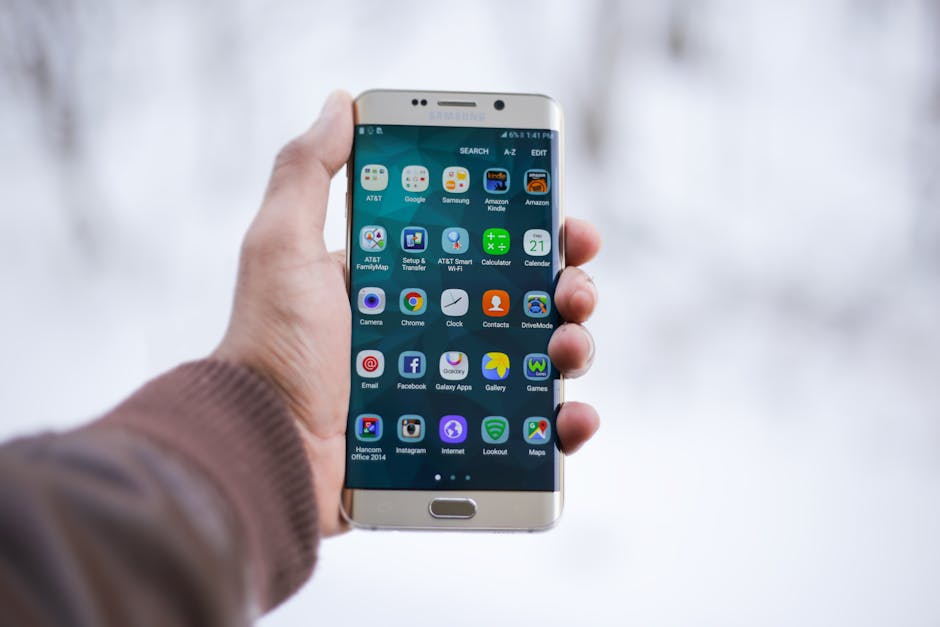
Standard Android app folder scroll settings
On most “stock” Android devices, like the Google Pixel, the app drawer is a vertical list. You swipe up and down to find your apps. However, once you group apps into a folder on your home screen, the behavior often shifts. Many Android skins use horizontal pagination for folders. This means if you have 20 apps in a folder, you have to swipe left or right to see the next “page” of icons.
This grid layout is great for streamlining tablet apps for increased efficiency because it utilizes the large screen real estate, but on a phone, it can feel like a lot of extra work. Most standard settings allow for alphabetical sorting, but they lack the “infinite scroll” many power users crave.
iOS and Apple TV folder behaviors
Apple takes a very “what you see is what you get” approach. On an iPhone, when you organize your apps in folders, you are locked into a paging system. There is no vertical scrolling option for folders. You see nine apps at a time, and you swipe sideways to see more.
Interestingly, Apple TV handles things slightly differently. While you can rearrange apps on the Apple TV 4K Home Screen and create folders, the navigation is strictly grid-based using the remote’s clickpad. There isn’t a “scroll” in the traditional sense; you move the focus from icon to icon. For those with multiple Apple TVs, the “One Home Screen” feature ensures that your folder organization stays consistent across every room in your house.
| Feature | Samsung One UI | Google Pixel | Apple iOS |
|---|---|---|---|
| Drawer Scroll | Horizontal (Default) | Vertical | N/A (App Library) |
| Folder Scroll | Horizontal | Horizontal | Horizontal |
| Looping | Via Good Lock | No | No |
| Custom Grids | Yes | Limited | No |
How to Enable Vertical App Folder Scroll Settings in Samsung One UI
Samsung users have long complained about the default horizontal app drawer. Swiping left and right feels “old school” compared to the smooth vertical feeds we use in apps like TikTok or Instagram. While Samsung began testing vertical scrolling in app folders and drawers in One UI 7, it isn’t always turned on by default.
To truly master your streamlining apps a comprehensive tutorial, you need to look beyond the standard settings menu.
Step-by-step vertical layout activation
If you want to ditch the horizontal pages, you’ll need a tool called Good Lock, available in the Samsung Galaxy Store. Within Good Lock, the Home Up module is your best friend for simplifying your life and de-cluttering your smartphone apps.
- Install Good Lock: Open the Galaxy Store and search for “Good Lock.”
- Download Home Up: Open Good Lock and find the “Home Up” module. Tap the download icon.
- Open Home Up: Once installed, tap Home Up inside the Good Lock app and toggle it to “On.”
- Change App List: Tap on “Home Screen” and look for the “Apps List” option.
- Enable Vertical: Toggle this on. Your app drawer will now scroll vertically in one continuous list.
Limitations of native vertical app folder scroll settings
While we love the vertical option, it isn’t perfect. In One UI 7 and the upcoming One UI 8, Samsung has faced criticism for tying vertical scrolling strictly to alphabetical sorting. This means you can’t manually place your favorite apps at the top of a vertical list; the system decides where they go based on their names.
Furthermore, some users feel the animation fluidity isn’t quite as “snappy” as third-party launchers. If you are a minimalist who only wants the essentials, these constraints might be frustrating. We recommend checking out the essential apps every minimalist needs to keep your app count low, which makes the alphabetical sorting much easier to manage.
Advanced Customization: Endless Looping and Secure Folders
Have you ever scrolled to the very end of your app list only to realize the app you wanted was actually on the first page? On a standard setup, you have to swipe all the way back. This is where “Loop Pages” comes in.
Enabling endless scroll in the app drawer
Using the same Home Up module mentioned earlier, you can enable a feature that lets your app drawer loop back to the beginning. This is a game-changer for efficiently organizing your desktop apps.
- The Fix: Inside Home Up > Home Screen, toggle the “Loop pages” switch.
- The Result: When you reach the last page of your apps, one more swipe takes you right back to page one. No more “hitting a wall” at the end of your list.
Customizing Secure Folder scroll behavior
Samsung’s Secure Folder is a private space for sensitive data, but its UI often lags behind the main home screen. In recent beta versions, Samsung experimented with changing the Secure Folder from horizontal to vertical scrolling.
While this caused some initial confusion, the goal is to provide a consistent experience across the whole OS. If you find your Secure Folder behavior has changed, check the settings within the Secure Folder itself or look for updates in efficiently organizing your desktop apps 2 to see if a directional toggle has been added to your specific version of One UI.
Optimizing Navigation with Third-Party App Folder Scroll Settings
If the built-in options from Samsung or Google feel too restrictive, third-party launchers are the answer. These apps replace your entire home screen interface, giving you total control over app folder scroll settings.
Using Folder Widget for large scrollable folders
One of the most innovative ways to handle apps is through the Folder Widget – Large Folders app. Instead of a tiny icon that you have to tap to open, this app creates “Large Folders” directly on your home screen.
- MxN Layouts: You can set a custom grid (like 3×3 or 4×4) where the icons are large enough to tap without opening the folder first.
- Scrollable Widgets: You can actually make these widgets scrollable. Imagine a small 2×2 square on your screen that contains 20 apps you can scroll through vertically.
- Customization: It supports icon masks and custom colors, making it one of the best minimalist apps for boosting productivity.
Desktop-style app folder scroll settings on macOS
We can actually learn a lot from desktop navigation. On a Mac, the Finder allows you to change how folders are displayed. You can choose between icons, lists, columns, or gallery views.
For those who miss the “tree-based” navigation of a PC, apps like Folders File Manager provide a User’s Guide on how to enable horizontal scroll bars and tree views. This level of organization is the “Gold Standard” for the ultimate guide to app organization. While phones aren’t quite there yet, third-party launchers like Nova are getting closer by allowing “Tabs” and “Folders within the App Drawer.”
Vertical vs. Horizontal Scrolling: Spatial Memory and Productivity
Why does it matter which way you swipe? It comes down to how our brains work. This is called spatial indexing.
The pros and cons of vertical lists
Vertical scrolling is generally faster for “scanning.” When we look for an app starting with “W,” our eyes can track a vertical line much faster than jumping across rows in a horizontal grid.
- Pros: Faster scanning, feels modern, fits the “feed” mentality of modern apps.
- Cons: Destroys spatial memory if the list is dynamic. If you install a new app and everything shifts down, your thumb will tap the wrong spot.
Why horizontal pagination persists
Horizontal pages provide “visual boundaries.” You know that Spotify is on “Page 2, top right.” This physical anchor helps muscle memory. Even when you change how folders open in the Finder on Mac, the goal is often to create a predictable environment.
- Pros: Stronger muscle memory, clear start and end points.
- Cons: Slower to navigate large quantities of apps, requires more swipes.
For more on choosing the right layout for your personality, see our guide on the essential apps every minimalist needs 2.
Frequently Asked Questions about App Folder Scroll Settings
Can I use vertical scrolling in Samsung folders without Good Lock?
Currently, no. Standard One UI settings only allow for horizontal folder pagination. You must use the Home Up module in Good Lock or a third-party launcher like Nova to achieve a true vertical folder or drawer experience.
How do I make my app drawer loop back to the first page?
On a Samsung device, install the Home Up module from Good Lock. Go to Home Screen > Loop pages and toggle it on. This works for the app drawer, allowing you to swipe continuously.
Why does my app drawer remember its last scroll position?
This is a “feature” intended to help you jump back into what you were doing. However, many find it disorienting. Currently, Samsung’s native vertical drawer in One UI 7/8 defaults to this behavior. To fix it, you may need to switch to a third-party launcher that offers a “Reset scroll on close” option.
Conclusion
At Dinheiro Bom, we believe that your digital environment should work for you, not against you. Mastering your app folder scroll settings is a small but powerful step in digital decluttering. Whether you choose the endless loop of Samsung’s Home Up, the rigid but reliable pages of iOS, or the hyper-customizable widgets of third-party apps, the goal is the same: spend less time swiping and more time doing.
Ready to take your phone organization to the next level? Explore more app management tips to turn your smartphone into a true productivity powerhouse.
