
Why Your iPad Storage Fills Up Faster Than You Think
How to clean up storage on iPad is something most people only search for when it’s too late — when an update fails, a new app won’t install, or the camera refuses to save another photo.
Here’s a quick answer to get you started right away:
Quick steps to free up iPad storage:
- Go to Settings > General > iPad Storage to see what’s using the most space
- Delete or offload unused apps
- Back up photos to iCloud, Google Photos, or Amazon Photos, then delete them locally
- Clear Safari cache via Settings > Safari > Clear History and Website Data
- Set Messages to auto-delete after 30 days (Settings > Messages > Keep Messages)
- Delete downloaded music, podcasts, and videos you no longer need
- Empty the Recently Deleted album in Photos to immediately recover space
iPad storage doesn’t disappear all at once. It creeps away quietly — a downloaded playlist here, a year’s worth of message attachments there. Before you know it, you’re staring at a “Storage Almost Full” warning right before a long flight or an important iOS update.
The problem is real. Apps like Messages can balloon to 4GB or more just from photos and videos shared in conversations. Streaming apps can hold over 1.5GB of cached data even when you haven’t downloaded a single thing intentionally.
And unlike a laptop, you cannot upgrade your iPad’s internal storage after purchase. What you bought is what you have — whether that’s 64GB or 256GB.
The good news? You don’t need to buy a new device. Most people can recover gigabytes of space in under 30 minutes by following a few targeted steps.
Assessing Your Current iPad Storage Usage
Before we start swinging the digital axe, we need to know exactly where the clutter is hiding. Trying to free up space without checking your usage is like trying to clean a dark attic without a flashlight; you’ll probably just move the mess around.
To get a clear picture, navigate to Settings > General > iPad Storage.
At the top of this screen, you’ll see a color-coded bar chart. This is your command center. It breaks down your storage into categories like Apps, Photos, Media, and System Data. Below that chart, Apple provides a list of apps, sorted by how much space they consume.
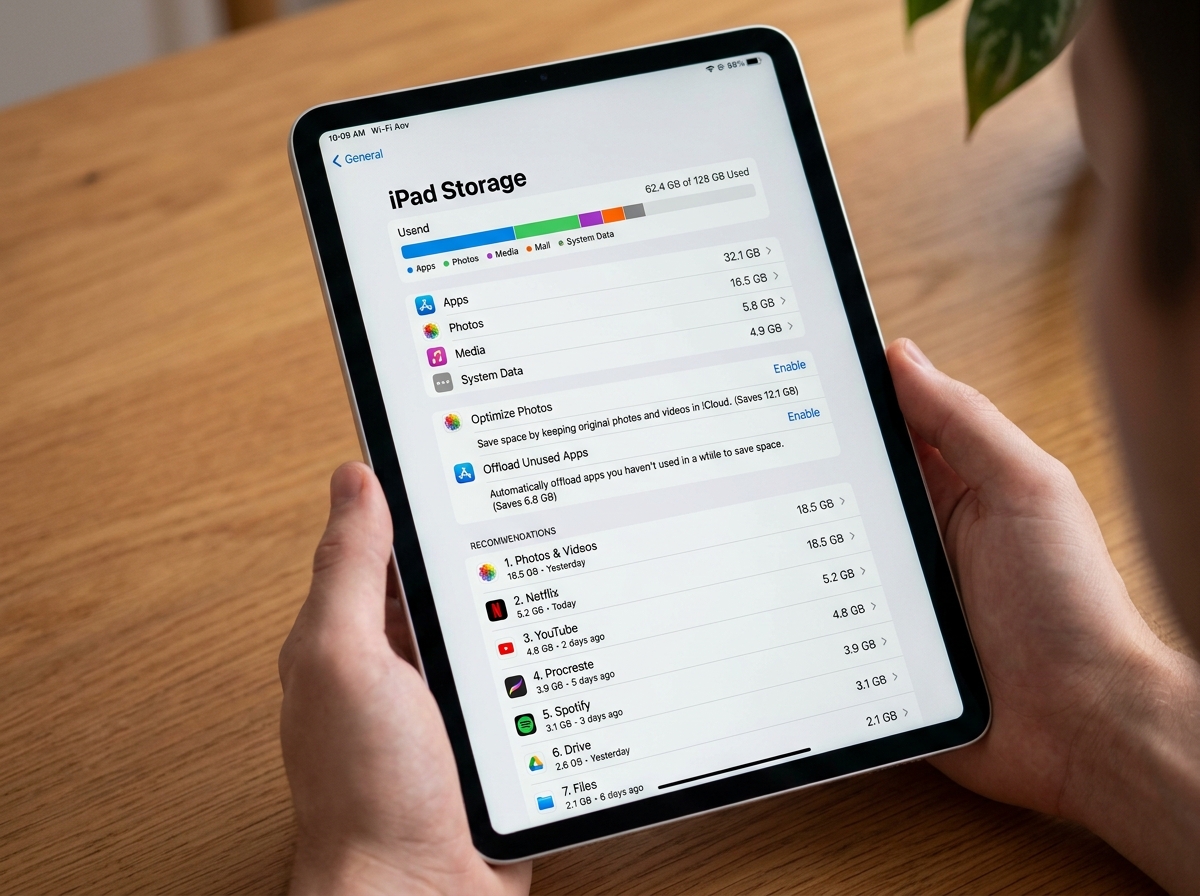
One thing we’ve noticed is that the total used space and your available space might not always add up to your iPad’s total capacity. This is because the operating system itself requires a significant chunk of real estate to function. If you find your iPad is sluggish, it might be because you’ve hit the “storage wall.” Just like when you clean disk space on your laptop, knowing the difference between “essential files” and “digital dust” is the first step toward a faster device.
Apple also provides “Recommendations” on this screen. These are tailored suggestions, such as “Review Large Attachments” or “Auto-Delete Old Conversations.” We highly recommend looking at these first, as they often offer the biggest “wins” for the least amount of effort. For more official details on reading these charts, you can visit Apple Support’s guide on checking storage.
How to Clean Up Storage on iPad by Managing Apps
Apps are often the biggest residents on your iPad. However, there is a crucial distinction to understand: the size of the app itself versus the size of its “Documents & Data.”
For example, a streaming app might only be 150MB, but the three movies you downloaded for a flight could be 4GB. When you look at your app list in Settings, tap on any individual app to see this breakdown. You will be presented with two main options: Offload App and Delete App.
If you want to streamline tablet apps for increased efficiency, you need to be strategic. If you delete an app, everything goes—the app, its data, and your settings. If you offload it, the app is removed, but your data stays put. This is a game-changer for those of us who have “app commitment issues.” You can find more about these native tools in the official iPad management guide.
Using the Offload Unused Apps Feature
The “Offload Unused Apps” feature is like having a digital assistant who cleans your room while you’re at work. When enabled, your iPad will automatically remove apps you haven’t opened in a while whenever storage gets low.
The magic here is that the app icon stays on your home screen with a little cloud symbol next to it. If you ever need it again, just tap the icon, and the iPad reinstalls it from the App Store, keeping all your documents and progress intact. This data is often mirrored in your iCloud Drive or accessible via the Files app.
To turn this on permanently, go to Settings > App Store and toggle on Offload Unused Apps. It’s one of the most efficient ways to organize your apps without having to make hard decisions every single day.
Identifying and Removing App Bloatware
While Apple doesn’t include “bloatware” in the traditional sense, we often accumulate “personal bloatware”—apps we downloaded for a single task and forgot about.
High-end games are the worst offenders. A single modern RPG can take up 5GB to 10GB. If you haven’t played it in three months, it’s time to let it go. Social media apps like Facebook or Instagram also grow over time because they cache every image and video you scroll past. Sometimes, the best way to effectively remove bloatware is to simply delete the app and reinstall it. This flushes out the hidden cache and returns the app to its original, slim size.
Optimizing Photos and Multimedia Files
If apps are the residents, photos and videos are the furniture that eventually fills every corner of the house. High-resolution video is particularly “heavy.” A few minutes of 4K video can easily exceed 1GB.
| Feature | Local iPad Storage | Cloud Storage (iCloud/Google) |
|---|---|---|
| Access Speed | Instant (No Wi-Fi needed) | Depends on Internet connection |
| Space Used | High (Can fill device quickly) | Minimal (Uses “Optimize” feature) |
| Safety | Risky (If iPad is lost/broken) | High (Redundant backups) |
| Cost | Free (Included with device) | Monthly subscription usually required |
To manage this, we suggest a “cloud-first” approach. By using services like iCloud, Google Photos, or Amazon Photos, you can keep your memories without sacrificing your hardware. If you’re feeling overwhelmed by your digital clutter, learning how to clean up cloud storage is just as important as cleaning the device itself.
Managing Photos to Free Up iPad Storage Space
The single most effective setting for photo management is Optimize iPad Storage. You can find this in Settings > Photos. When this is on, your iPad keeps full-resolution versions in iCloud and stores smaller, device-sized versions on your iPad. You’ll barely notice the difference in quality on the screen, but your storage will thank you.
Another tip: remember the Recently Deleted album. When you delete a photo, it isn’t actually gone. It sits in a “digital purgatory” for 30 days. If you are trying to free up space for an immediate update, you must go to Photos > Albums > Recently Deleted and tap Delete All. This is a vital step in simplifying your digital life.
Clearing Music and Video Downloads
We’ve all been there: you download a whole season of a show for a trip, watch it, and then forget it’s there. These files are massive.
Open the TV app and check your “Downloaded” section. Swipe left on anything you’ve already watched to delete it. The same applies to the Music app. If you have a massive library, consider streaming instead of downloading everything.
For specialized users, like pilots using apps like ForeFlight, the data can be even more intense. Downloading a full set of US charts can take up 25GB. Removing just the Alaska region charts can instantly free up 5GB. Whether it’s music or navigation data, being a smart digital hoarder means knowing when to let go of the downloads you aren’t currently using.
Tackling Messages and System Data
Messages is the “silent killer” of iPad storage. Every meme, GIF, and video sent to you is stored on your device by default. If you’ve been using the same iPad for years, your Messages app might be taking up 5GB or 10GB without you realizing it.
Go to Settings > Messages > Keep Messages. Change this from “Forever” to “30 Days” or “1 Year.” Your iPad will then automatically prune old conversations. If that feels too “dangerous,” you can manually review large attachments. In the iPad Storage settings, tap on Messages and then Review Large Attachments. This lets you see exactly which videos are eating your space so you can delete them individually. This is a key part of optimizing your device for speed.
How to Clean Up Storage on iPad via Safari Cache
Every website you visit leaves a little bit of “dust” behind in the form of cookies and cached images. Over time, this can add up to several hundred megabytes.
To clear this:
- Open Settings.
- Scroll down to Safari.
- Tap Clear History and Website Data.
This won’t just free up space; it often makes browsing feel snappier. It’s a simple habit that helps de-clutter your apps and your overall user experience.
Frequently Asked Questions about iPad Storage
How much free space do I need for iPadOS updates?
For a major iPadOS update, we recommend having at least 10GB of free space. While the update file itself might only be 2GB or 3GB, the iPad needs extra “breathing room” to unpack the files, move data around, and install the new software. For general daily use, try to keep at least 2GB free to prevent the system from slowing down or apps from crashing.
What is the ‘Other’ storage category and how do I reduce it?
The “Other” category (now often labeled as System Data) is a catch-all for things like Siri voices, fonts, system logs, and—most importantly—cache.
If your System Data is over 10GB and won’t go down, the most effective fix is often to delete and reinstall your most-used streaming apps (like Netflix, YouTube, or Spotify). These apps are notorious for hoarding cache that doesn’t always get cleared automatically.
Is a factory reset necessary for storage issues?
A factory reset is the “nuclear option.” It is rarely necessary, but it is the most effective way to get a perfectly clean slate. If you’ve tried everything and your iPad still says it’s full, or if “System Data” is taking up half your storage, a reset might be the answer.
Crucial: Always perform a full iCloud backup before doing this. Go to Settings > [Your Name] > iCloud > iCloud Backup > Back Up Now. Once finished, you can go to General > Transfer or Reset iPad > Erase All Content and Settings.
Conclusion
Learning how to clean up storage on iPad isn’t just about making room for more stuff; it’s about digital hygiene. A cluttered iPad is a slow iPad. By managing your apps, optimizing your photos, and keeping an eye on your message attachments, you ensure that your device stays as fast as the day you unboxed it.
At Dinheiro Bom, we believe that your technology should serve you, not the other way around. Don’t let a “Storage Full” message stop your productivity or your fun. Take thirty minutes today to go through these steps, and you’ll find that you don’t need a new iPad—you just needed a little more room to breathe.
Reclaim your space today and get back to what matters most!
