
Why Your iPhone Keeps Running Out of Space (And What to Do Right Now)
The best way free iphone space depends on what’s eating it — but for most people, the fastest wins come from these six actions:
- Enable “Optimize iPhone Storage” under Settings > Photos to move full-res photos to iCloud
- Offload unused apps via Settings > General > iPhone Storage
- Delete large message attachments found in Settings > General > iPhone Storage > Messages
- Clear Safari cache under Settings > Safari > Clear History and Website Data
- Empty the Recently Deleted album in Photos (deleted photos stay there for 30 days and still count against your storage)
- Delete downloaded content from streaming apps like Spotify, Netflix, or Podcasts
You’re not alone in this. Storage anxiety is one of the most common frustrations iPhone users face — and it tends to hit at the worst possible moment. Think: trying to record something important and getting a “Storage Almost Full” pop-up right in the middle of it.
Here’s why it happens so fast. A single minute of 4K video at 60fps takes up roughly 400MB. Photos and videos alone consume a median of 42% of total iPhone storage across users. And if you’re on a 64GB iPhone — still the most widely used model worldwide — that math gets painful quickly.
The good news? You don’t need to buy a new phone or upgrade your iCloud plan right away. Most people can reclaim several gigabytes in under 30 minutes using built-in iOS tools they’ve never touched.
This guide walks you through every method, from quick fixes to deeper cleanups — so you can stop managing storage anxiety and get back to actually using your phone.
The Best Way Free iPhone Space: Auditing Your Digital Junk Drawer
Before we start swinging the digital axe, we need to know what we’re actually cutting. Most of us treat our iPhones like a digital junk drawer—we keep shoving things in until the drawer won’t close. To fix this, we need to perform a storage audit.
Open your Settings app, tap on General, and then select iPhone Storage.
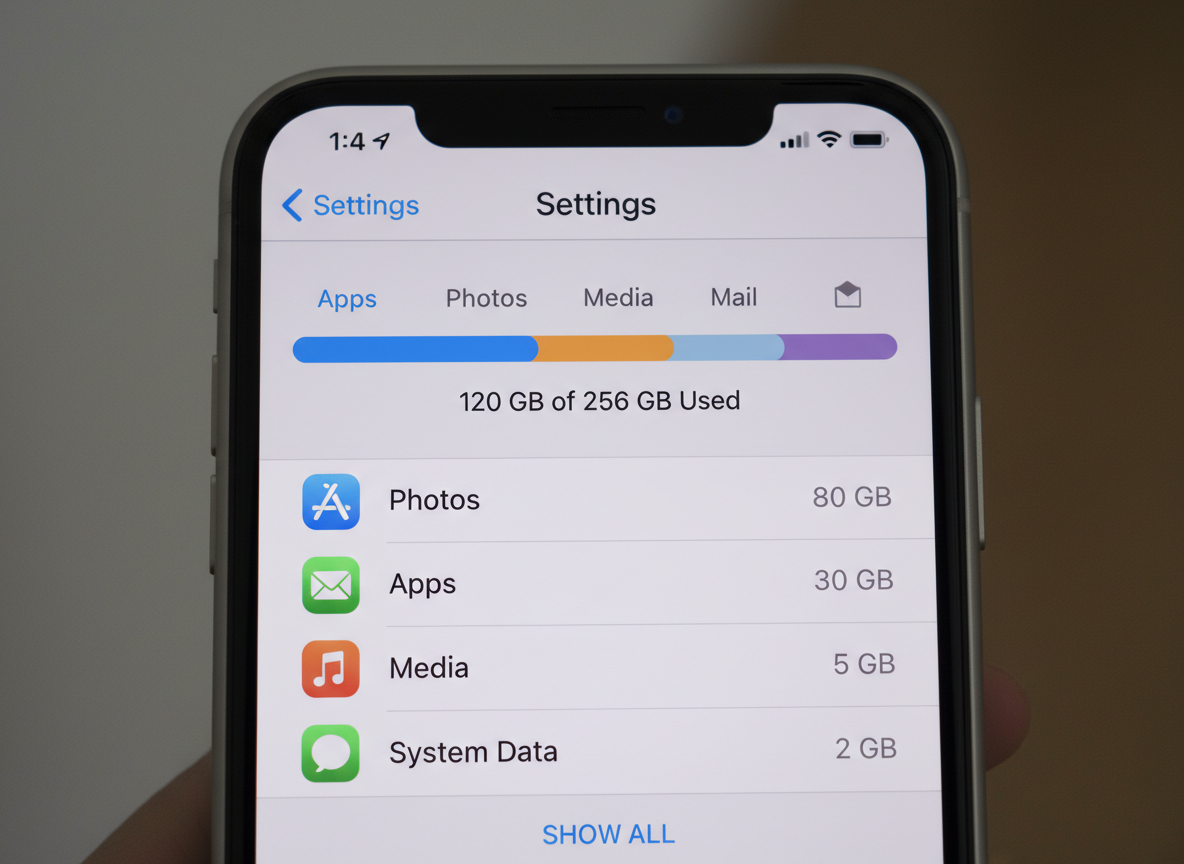
At the top, you’ll see a color-coded bar graph. This is your roadmap. It categorizes your data into Photos, Apps, Media, Mail, and the mysterious “System Data” (formerly known as “Other”). Below this graph, iOS provides “Recommendations,” such as offloading unused apps or reviewing large video attachments. These are often the lowest-hanging fruit when looking for the best way free iphone space.
If you scroll further down, you’ll see a list of every app on your phone, ranked by how much space it consumes. You might be shocked to find that a simple social media app is hogging 3GB, while a game you haven’t played since 2022 is sitting on another 4GB of “ghost data.” Understanding this breakdown is the first step toward a more minimalist smartphone setup. For a technical deep dive into these categories, you can also check out the official guide on how to manage storage on iPhone – Apple Support (IS).
Mastering the “Optimize Storage” Feature for Photos and Videos
Since media typically accounts for nearly half of a user’s storage, tackling the Photos app is non-negotiable. If you are a “memory hoarder” with 15,000 family photos, your local storage is likely gasping for air.
The “Optimize iPhone Storage” feature is a game-changer. When enabled, your iPhone keeps the full-resolution, space-hungry originals in iCloud, while keeping smaller, device-sized versions on your phone. If you want to view a photo in full detail or edit it, the phone downloads the high-res version on demand.
To turn this on, go to Settings > Photos and ensure iCloud Photos is toggled on, then select Optimize iPhone Storage. This single click can potentially reclaim hundreds of gigabytes if you have a large library. It’s a cornerstone of any beginner’s guide to iPhone minimalism.
Don’t forget the “Recently Deleted” trap! When you delete a photo, it isn’t actually gone. It moves to the “Recently Deleted” album for 30 days. This is a safety net in case you accidentally delete a masterpiece, but it means that “deleted” photo is still taking up space. To free up room immediately, go to Photos > Albums > Recently Deleted, tap Select, and then Delete All.
The Best Way Free iPhone Space Using Cloud Services
While iCloud is the most seamless option, it isn’t the only one. Apple’s free tier only offers 5GB, which is barely enough for a few 4K videos. If you’re looking for the best way free iphone space without necessarily paying for a higher iCloud tier immediately, consider these alternatives:
- Google Photos: Offers 15GB of free storage (shared across your Google account). It has a “Free Up Space” button that deletes photos from your device once they are safely backed up to the cloud.
- Amazon Photos: If you are a Prime member, you get unlimited full-resolution photo storage. This is an incredible value that many people forget they already pay for.
- External Backup: For the ultimate “nuclear” storage option, transfer your photos to a PC or Mac and then wipe them from the phone entirely.
App Management: Offloading vs. Deleting Unused Software
We all have those “just in case” apps—the airline app for a flight we took three years ago, or a high-end camera app we used once. These apps contribute to what we call “app accumulation.”
There is a massive difference between Deleting and Offloading an app:
| Feature | Offloading App | Deleting App |
|---|---|---|
| App Icon | Stays on Home Screen (with cloud icon) | Removed completely |
| App Data/Documents | Preserved on device | Deleted permanently |
| Storage Freed | High (removes the app binary) | Maximum (removes everything) |
| Reinstallation | One tap; no login needed | Must find in App Store; must re-login |
Offloading is perfect for apps you use seasonally (like a tax app or a holiday-themed game). To do this manually, go to Settings > General > iPhone Storage, tap the app, and select Offload App. If you want to learn more about keeping your device lean, read our guide on how to effectively remove bloatware from your device.
The Best Way Free iPhone Space by Offloading Apps
If you don’t want to micromanage your apps, let iOS do it for you. Enable Automatic Offloading by going to Settings > App Store and toggling on Offload Unused Apps.
This feature identifies apps you haven’t opened in a while and removes the software while keeping your personal data safe. If you ever need the app again, just tap the icon on your home screen, and it downloads instantly—settings, logins, and progress intact. This is a brilliant way to simplify your life by de-cluttering smartphone apps.
Cleaning the Hidden Corners: Messages, Cache, and System Data
Sometimes, your storage is full even if you don’t have many photos or apps. This is usually due to “digital dust”—cached files and message attachments hiding in the background.
1. The Safari Scrub Every website you visit leaves a little bit of data behind to help it load faster next time. Over months, this adds up. Go to Settings > Safari and tap Clear History and Website Data. This can often reclaim 500MB to 1GB instantly.
2. The iMessage Hoard If you’ve been in the same group chat for five years, you likely have gigabytes of old memes, GIFs, and videos buried in your message history.
- Quick Fix: Go to Settings > General > iPhone Storage > Messages. Tap Review Large Attachments to see a list of the biggest files hiding in your texts and delete them one by one.
- Long-term Fix: Go to Settings > Messages > Keep Messages and change “Forever” to “30 Days” or “1 Year.” This ensures your phone doesn’t become a permanent archive for every “Good Morning” GIF ever sent to you. Managing these digital interruptions is a key part of achieving minimalism by reducing phone notifications.
Reducing “Other” and System Data
“System Data” is the catch-all category for logs, caches, and temporary files the OS is currently using. It can be frustratingly stubborn.
- Streaming vs. Downloading: If you use Spotify, Apple Music, or Netflix, check your “Downloads.” We often download a playlist for a flight and forget it’s sitting there taking up 2GB of space. Switching to streaming-only is the best way free iphone space for music lovers.
- The Restart Trick: Sometimes the iPhone’s storage calculation gets “stuck.” A simple restart (Power off and on) can force the system to clear temporary caches and update the storage graph.
- The “Large File” Hack: An old community trick involves attempting to download a very large movie from the iTunes Store (one larger than your available space). iOS will often realize it needs room and aggressively purge its own internal caches to make it happen. You don’t actually have to buy the movie; the system cleanup happens before the transaction!
Frequently Asked Questions about iPhone Storage
Why is my iPhone storage still full after deleting photos?
This is usually due to the Recently Deleted folder. iOS keeps those photos for 30 days “just in case.” You must manually empty that folder to see the storage change. Additionally, if the bar graph doesn’t update immediately, try restarting your device to refresh the system cache.
What is the difference between iPhone storage and iCloud storage?
Think of iPhone Storage as the physical closet in your house—it has a fixed size (e.g., 128GB) and cannot be expanded. iCloud Storage is like a rented storage unit down the street. Upgrading iCloud gives you more room to move things out of your house, but it doesn’t make your physical closet any bigger.
How much free space is needed for an iOS update?
Major updates (like moving from iOS 17 to iOS 18) typically require at least 5GB of free space to download and unpack the files. Smaller “point” updates usually need around 1GB. If you’re right on the edge, offloading a few large games is the quickest way to make room for an update.
Conclusion
Reclaiming your iPhone storage isn’t about being ruthless with your memories; it’s about being smarter with your settings. By automating your offloads, optimizing your photo library, and clearing out the “digital dust” in your messages, you can transform your device from a cluttered mess into a lean, high-performance tool.
At Dinheiro Bom, we believe that digital minimalism leads to better productivity and less stress. Don’t let a “Storage Full” notification stop you from capturing the next big moment. Start with the quick wins today—clear that Safari cache and empty your Recently Deleted folder—and feel the immediate relief of a cleaner phone.
Start your journey to a cleaner digital life at Dinheiro Bom and discover how a few simple habits can keep your tech running like new for years to come.
