
Your Android Is Full — Here’s What to Do Right Now
How to clean up space on android phone is something millions of people search for every day — and for good reason. A full phone slows everything down.
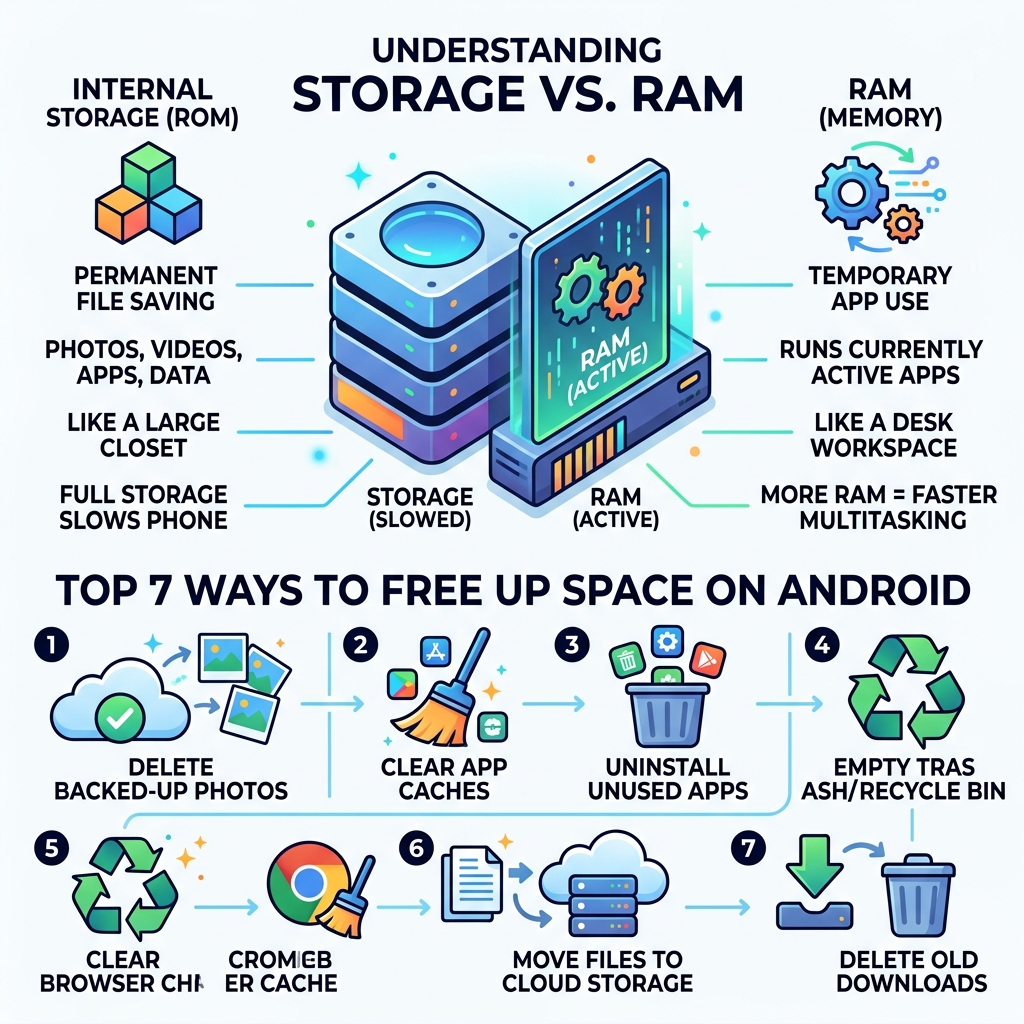
Here are the fastest ways to free up space:
- Delete backed-up photos using the Google Photos “Free up space” feature
- Clear app caches via Settings > Apps > [App] > Storage > Clear Cache
- Uninstall unused apps — check your Play Store for “Least used”
- Empty your photo and file trash/recycle bin
- Clear your Chrome browser cache (it can silently eat dozens of GB)
- Move files to cloud storage like Google Photos or OneDrive
- Delete old downloads via your Files app
That nagging “Storage space running out” notification always seems to pop up at the worst possible moment — right when you’re trying to snap a photo or download something important.
Here’s the thing: storage and memory are not the same. Storage is where your files, photos, and apps live permanently. Memory (RAM) is what your phone uses to run apps right now. Cleaning up storage won’t free up RAM, and vice versa.
A full storage drive doesn’t just stop you from saving new files. It can also make your phone sluggish, cause apps to crash, and slow down everyday tasks.
The good news? Most Android phones are packed with built-in tools to fix this — and you don’t need to delete anything important.
Understanding Android Storage: Internal vs. Shared vs. External
Before we dive into the “how-to,” we need to understand the “where.” Android storage can be a bit confusing because of how the system labels things. If you’ve ever seen a warning about “Internal Shared Storage” while your SD card sits empty, you aren’t alone.
Internal Storage vs. Internal Shared Storage
On most modern phones, Internal Storage refers to the built-in flash memory chips where the Android operating system and your core apps live. Internal Shared Storage is a partition of that same physical chip that is accessible to you and your apps for saving photos, downloads, and app data. When you get a low storage warning, it’s usually this “shared” space that is crying for help.
External Storage (The MicroSD Card)
Many Android phones allow you to insert a microSD card. This is External Storage. It’s like a trailer hitched to a car; it provides extra room for heavy cargo like 4K videos and music libraries.
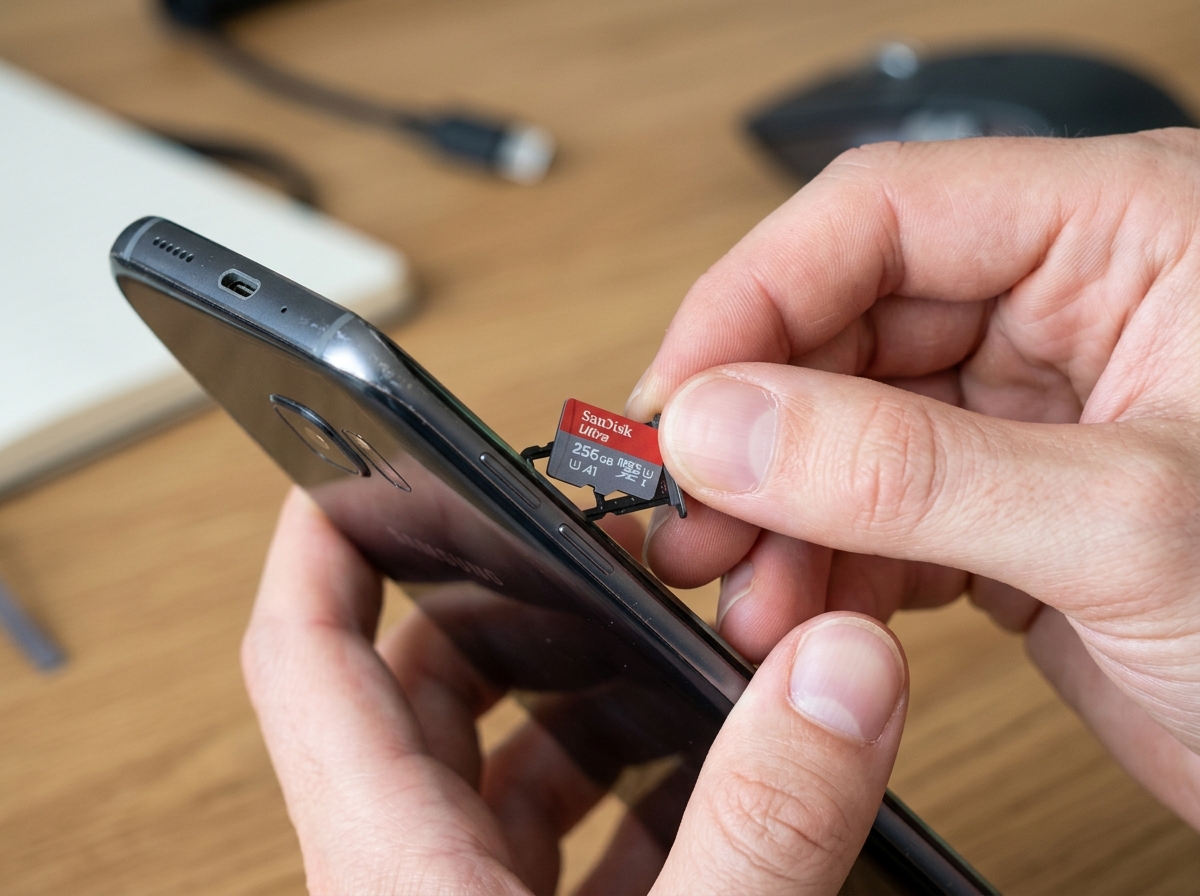
However, there is a feature called Adoptable Storage (formatting an SD card as internal storage). While this makes the SD card act like part of the phone’s main brain, it comes with risks:
- Speed: SD cards are often much slower than internal memory, which can make apps lag.
- Permanence: Once formatted this way, you cannot remove the card without breaking your apps.
- Failure: If the SD card dies, you lose all the data integrated into the system.
The Motorola “False Alarm” and the Recycle Bin
Interestingly, some manufacturers like Motorola are known to send storage alerts even when you have significant space left (sometimes over 90GB free!). These are often “feature highlights” rather than actual emergencies.
Another hidden culprit is the Recycle Bin. Even if your files are stored on a microSD card, when you delete a photo, Android often moves it to a trash folder located on the Internal Shared Storage. If you don’t empty that bin, you haven’t actually freed up any functional space!
| Feature | Internal Shared Storage | External SD Card |
|---|---|---|
| Speed | Extremely Fast | Varies (Usually Slower) |
| App Support | Supports all apps | Limited app support |
| Removability | Fixed (Built-in) | Easy to swap |
| Best For | System, Apps, High-speed data | Media, Photos, Offline Maps |
How to Clean Up Space on Android Phone Using Built-in Tools
You don’t always need fancy software to fix a full phone. Most of what you need is already in your Settings menu. Depending on your brand—whether it’s a Pixel, Samsung, or Motorola—the names might change slightly, but the functions are the same.
The Files by Google App
For many, the Files by Google app is the gold standard for how to clean up space on android phone.
- Open the Files app.
- Tap the Clean tab at the bottom left.
- You’ll see suggestions to delete “Junk files,” “Duplicate files,” and “Large files.”
- Simply tap “Clear” or “Select files” to review and remove them.
Samsung Device Care and Pixel Smart Storage
Samsung users have a dedicated tool called Device Care (found in Settings). It offers an “Optimize Now” button that clears out temporary files and closes background processes in one tap.
Pixel users have access to Smart Storage. This feature is a lifesaver; it automatically deletes backed-up photos and videos from your device once they are 60 days old, or if your storage drops below 25%. You can find this in Settings > Storage.
For more specialized advice, you can check out our guide on the top decluttering apps for Android.
How to clean up space on android phone by managing apps
Apps are the biggest space hogs on modern phones. Between the app itself, the data it saves (like offline maps), and the “cache” it builds up, a single game can easily take up 5GB or more.
- Find the “Least Used” Apps: Open the Google Play Store, tap your profile icon > Manage apps & device > Manage. Sort the list by “Least used.” You might be surprised to find apps you haven’t opened in two years still taking up space!
- App Archiving: On newer Android versions, the system can “archive” apps you don’t use often. This removes the heavy app files but keeps your personal data, so if you ever re-download it, you pick up right where you left off.
- Clear Cache vs. Clear Storage: In Settings > Apps, you can select an app and go to Storage.
- Clear Cache is safe; it deletes temporary files (like image thumbnails).
- Clear Storage (or Data) is like a factory reset for that app; it deletes your login info and progress. Use this only if the app is massive and you don’t mind logging back in.
Discover more about managing your app library here.
How to clean up space on android phone with cloud storage
Cloud storage is like having a digital garage. You keep the things you need right now in the house (your phone) and move the rest to the garage.
Google Photos is the most effective tool for this. When you use the “Free up space” button, the app checks which photos are safely backed up to Google’s servers and then deletes the local copy from your phone. You can still see them in the app as long as you have an internet connection.
Microsoft OneDrive users have a similar feature. The “Clean Up Space” prompt usually triggers once you have at least 1GB of media ready to upload. It’s a great way to keep your internal storage lean while keeping your memories safe.
According to Google Photos Help, photos fewer than 30 days old are sometimes kept on the device even after a cleanup to ensure you have quick access to your most recent shots.
Deep Cleaning: Clearing Cache and Hidden Junk Files
Sometimes, the “Storage Full” warning persists even after you’ve deleted your favorite apps. This is often due to “hidden” junk.
The Chrome Cache Monster
Did you know the Chrome browser can silently grow to massive proportions? In one real-world case, a user found that Chrome’s cache had consumed 55GB on a 64GB phone! Because this is “hidden” in the app data, it doesn’t always show up in standard file managers.
- To fix this: Open Chrome > tap the three dots > History > Clear browsing data. Make sure “Cached images and files” is checked.
Messaging App Media
Apps like WhatsApp are notorious for filling storage. Every “Good Morning” GIF and viral video sent to your group chats is saved to your internal shared storage. Go into WhatsApp Settings > Storage and Data > Manage Storage to see which chats are the biggest offenders.
Advanced Tools: SD Maid and System Cache
If you want to go deeper, apps like SD Maid are highly effective at finding “orphaned” files (files left behind by apps you uninstalled long ago). We recommend using the free version every few weeks to keep things tidy.
For the truly tech-savvy, you can boot your phone into Recovery Mode (usually by holding Power + Volume Down during startup) and select “Wipe Cache Partition.” This clears out system-level temporary files without deleting your personal data.
Check out our deep-dive into system cleaning tools.
Managing Media and Cloud Backups Safely
We’ve all been there: you delete a video to make room, only to realize you needed it. Managing media requires a safety-first approach.
The Trash Folder Rule
When you delete a photo in the Gallery or Google Photos, it isn’t gone instantly. It sits in the Trash (or Recycle Bin).
- Google Photos Trash: Items stay for 60 days before permanent deletion.
- Local Gallery Trash: Items usually stay for 30 days. If you are in a storage emergency, you must empty these bins manually to see an immediate increase in free space.
Offline Media: The Forgotten Files
We often forget about the media we “downloaded for later.”
- YouTube Music / Spotify: High-quality audio downloads can take up gigabytes.
- Google TV / Netflix: That HD movie you watched on the plane three months ago is still sitting there. Open the app’s “Library” or “Downloads” section to remove them.
Manual Backups to PC
If you don’t trust the cloud, use a USB cable to connect your phone to a computer. Navigate to the DCIM and Pictures folders. Copy everything to your PC’s hard drive, verify the files are there, and then delete them from your phone. This is the most “old school” but reliable way to clear massive amounts of space.
Frequently Asked Questions about Android Storage
Why does my phone show low storage when my SD card is empty?
This happens because Android installs apps and saves most system data to Internal Shared Storage by default. Even if you have a 512GB SD card, your phone will still complain if the 64GB of internal memory is full. You need to manually move photos or compatible apps to the SD card via Settings > Apps > [App Name] > Storage > Change.
Is it safe to use third-party cleaning apps like SD Maid?
Yes, SD Maid is generally considered safe and very effective. However, be wary of “Booster” or “Ram Cleaner” apps that promise to “speed up” your phone with flashy animations. These often do more harm than good by killing necessary background processes. Stick to reputable file-cleaning tools.
Will clearing app cache delete my game progress or login info?
No. Clearing Cache only removes temporary files like images the app downloaded so it wouldn’t have to download them again. Clearing Data (or Storage), however, will delete your progress and login details. Always choose “Clear Cache” first.
Conclusion
Keeping your Android phone lean doesn’t just give you more room for photos; it ensures your device runs smoothly for years to come. At Dinheiro Bom, we believe that maintaining your tech is just as important as choosing the right device.
We recommend performing a “storage audit” at least once a month. Empty your trash, clear your Chrome cache, and take a quick look at your “Least Used” apps. By using built-in tools like Files by Google and Smart Storage, you can automate much of this work and never see that “Storage Full” warning again.
For more expert advice on keeping your digital life organized and efficient, visit Dinheiro Bom for more Android tips. Your phone—and your sanity—will thank you!
